Charting Issues
Charting on the Wrong Patient
When working a ticket that involves moving cases between patient accounts, MRN 1 will serve as the MRN that holds the cases needing to be moved and MRN 2 will serve as the MRN that will have the cases moved in to it
-
Search MRN 1 provided that it has the case(s) that don’t belong to the correct patient.
-
Review the reported case(s) that are needing to be moved to confirm that the/all incorrect case(s) are being accounted for
-
Confirm that MRN 2 is able to be located within the EHR
-
Once you’ve confirmed the case(s) needing to be moved from MRN 1 to MRN 2, contact your organization's privacy team per your current policies to inform them of the error. The privacy team will then submit a ticket to support to move the necessary details.
Unable to Add New Care Plan
-
Search the MRN provided
-
Click on the appointment card of the visit
-
Click View Details
-
Verify that checkin and triage have been completed, and that the visit is not marked as “Canceled” or “No-show”
- Having a visit marked as such will cause the chart attached to the visit to become hidden from view in the case. To view a canceled or no-show visit’s chart, click “All” on the “All/Active” toggle located within the case’s title banner.
- If this may be the case, un-cancel or undo the No-show for the appointment so that the chart surfaces in the case
- If you are unable to un-cancel the appointment or undo the no-show, submit a ticket to Carbon Support (opens in a new tab)
-
Then click on the “Today’s chart” button
-
Once in the view of the chart, check to verify that visit documentation has occurred on the chart, and not via addendum
- If charting has occurred properly and you see the Care Plan field surfaced within the chart, click the Add New button.
- If you get a reaction from the button and are able to fill out a care plan, then fill in the New Care Plan
- If you don’t get a reaction from the button, take a Demo mode screen recording/video with the Inspect Tool (opens in a new tab) window open, showing that there is no reaction from the “Add New” button in the Care Plan.
- Once you have reviewed the video and no PHI is included and bug behavior is displayed, submit a ticket to Carbon Support (opens in a new tab)
- If charting has occurred properly and you see the Care Plan field surfaced within the chart, click the Add New button.
Unable to Delete Incorrect Results
-
If the chart is locked, ask that the rendering provider or a supervising physician unlock the chart
-
If/once the chart is unlocked, click the “Today’s chart” button and navigate to the results needing to be deleted
- Long hold on the results to surface the option to delete
-
If when you click the results to delete and they delete successfully, the provider or clinic staff will need to re-enter the results correctly.
-
If when you click the results to delete the results you receive an alert that the results can not be deleted because they have already been billed for or you are not given the option to delete, submit a ticket to Carbon Support (opens in a new tab)
-
If you are not given the option to delete, submit a ticket to Carbon Support (opens in a new tab)
Unable to Edit or Save Care Plan
-
Click the appointment card of the visit and click View Details
-
Verify that checkin and triage have been completed, and that the visit is not marked as “Canceled” or “No-show”
- Having a visit marked as such will cause the chart attached to the visit to become hidden from view in the case. To view a canceled or no-show visit’s chart, click “All” on the “All/Active” toggle located within the case’s title banner.
-
-
Check to see if the visit has already been signed off/locked
- Care plans cannot be edited if the chart is locked
-
Once in the view of the chart, check to verify that visit documentation has occurred on the chart, and not via addendum
-
If the Care Plan was added to the case via addendum, the provider will need to add the Care Plan to the actual visit slot.
-
If charting has occurred properly and the Care Plan is within the chart/visit slot, please provide a video or screen recording while in Demo mode to avoid PHI with the Inspect Tool (opens in a new tab) window showing that there is no reaction when the Edit or Save buttons are pushed.
-
Once you have reviewed the video and no PHI is included and bug behavior is displayed, submit a ticket to Carbon Support (opens in a new tab)
Unable to Submit Orders
-
Search the MRN
-
Click the appointment card of the visit being reported and click View Details
-
Verify that check-in and triage have been completed, and that the visit has been started
- Note that if a MA, XRT, LVN, or RN starts the visit, the visit will be considered a Health Services Visit. For an understanding of HSV flow, see this whimsical (opens in a new tab)
-
Click Today’s Chart and ensure that the Care Plan is listed on the chart
-
Check that the individual associated with the Care Plan and wanting to submit orders is a licensed provider
-
Only a licensed provider can fulfill this action
-
If they are, and are still experiencing problems submitting orders, delete and re-enter the orders. If after that the orders are still unable to submit, take a screen recording while in DEMO mode with the Inspect Tool (opens in a new tab) open, and press the Submit Orders button to show there is not reaction
- Once you have reviewed the recording and there is no PHI and the Inspect Tool window is open, please email icook-ehr-support@carbonhealth.com. Be sure to include the screen recording or video in the email.
-
-
Unable to Publish the Care Plan
-
Search the MRN provided
-
Click the appointment case of the visit being reported
-
Click View Details
-
Click the Today’s Chart button
-
Make sure everything within the Care Plan is filled out and that it is attached to the chart
- Ensure that the individual associated with the Care Plan is eligible to publish Care Plans. A license is needed to publish
-
If everything is correct and it is not letting you click “publish care plan”, please provide a video or screen recording while in Demo mode to avoid PHI with the Inspect Tool (opens in a new tab) window showing that there is no reaction when the “Publish Care Plan” button is pushed.
-
Once you have reviewed the video and no PHI is included and bug behavior is displayed, please email icook-ehr-support@carbonhealth.com.
Unable to Save Edits in MDM
-
Confirm the date of service of the appointment that you are wanting the MDM updated on
-
Search the MRN
-
Click the appointment card of the visit being reported and click View Details
-
Check to see if the bill for the visit has been finalized by clicking Review bill
-
If the visit has already been billed for, no further MDM edits can be done and saved
-
If self pay - and bill is finalized, MDM cannot be updated
-
If insurance - and 72 hours have past since the visit, MDM cannot be updated
- Insurance visits have 72 hours to have chart details be edited
-
-
The workaround would be to add in a new Narrative Medical Decision Making (MDM) with the details the provider needs surfaced in the chart. If the chart has already been locked, the new Narrative Medical Decision Making (MDM) can be added via addendum to the case. If the provider needs further assistance, please contact your clinician manager for additional questions.
Unable to Upload X-ray Images or Reports
-
Search the MRN
-
Click the appointment card of the visit being reported and click View Details
-
Check to see under Orders if the imaging order icon is blue (incomplete order) or green (completed order)
- If blue, continue to the next step
- If green, let the reporter know the imaging order is showing as completed
-
If the order is marked as incomplete, click in to the chart and check to see that the images and/or imaging orders were uploaded to the correct section of the chart
-
Images and reports should be uploaded to the imaging order’s “Upload Result” button located within the Care Plan. Once something is added, the button will change to “See/Update results”
-
If there are images and/or reports uploaded to the imaging order result section, try to:
- Have the imaging order and uploaded results deleted from the Care Plan
- Refresh the Provider App
- Load the imaging order and results in again
-
-
If the incomplete order status persists, provide a screen recording while in DEMO mode to avoid PHI of you going through the workflow with the Inspect Tool (opens in a new tab) open and escalate for further assistance.
-
Please email icook-ehr-support@carbonhealth.com. Be sure to include the screen recording or video in the email.
-
❗Note: The EHR does not allow anything over 7MB to be uploaded, anything larger will need to be broken up into multiple files
- To check the size of a file, use the Finder application on their device.
-
-
Macros
Macros Not Loading or Saving
To enter Demo Mode on the Provider App: Click on Settings while in the Provider App → scroll down to your account section → click the Demo Mode toggle so that it turns green. Green will indicate that Demo Mode is on
To take a screen recording on a laptop: Hold down the Command + Shift + 5 keys altogether and click the screen you would like recorded. Click here (opens in a new tab) to be directed to Apple’s directions
To take a screen recording on an ipad: Swipe on the screen for the Control Center, and click the record button. Click here (opens in a new tab) to be directed to Apple’s directions
To take a screenshot on a laptop: Hold down the Command + Shift + 4 keys altogether and with your cursor, click and drag the cursor across the area of your screen that you would like to capture an image of
-
Search the MRN and click on the patient’s account
-
Confirm what macro you should be on the look out for and the information that it is supposed to have, and verify if the macro was uploaded to the specified case or date of service in question
-
If the macro is uploaded and you’re able to view it, complete a hard refresh and try to edit and save the macro again
-
If the macro is not showing in the chart, verify which field (ex. HPI, ROS, PE) you are wanting to apply the macro to and what the macro is titled, and search for that macro within that field yourself from a test account. You will need to reproduce the workflow by using a test account as part of your investigation. If you are unsure of the workflow, follow the steps below:
-
If you are able to view the macro within the field from your test account, go back to the patient’s account and specific case/date of service, click the Add to Chart button and search for the field you are wanting to apply the macro to.
- Once you get the field added to the patient’s chart, search for the macro and click it, then click Save to the field.
- If you are able to get the macro to save into the field it will show under your name and in case you need to add additional information, you may do so.
- Delete the original field that could not have the macro save to it and proceed to step 5
-
If you are not able to get the macro to save into the field you just added to the patient’s chart, take a Demo mode screen recording with the Inspect tool window (opens in a new tab) open of you trying to apply the macro and save to the field.
-
-
Once you have reviewed the video and no PHI is included and bug behavior is displayed, submit a ticket to Carbon Support (opens in a new tab)
How to Delete a Macro
- Locate your macros at the top of the section you are in.
- Long press on the macro you wish to delete.
- The options “Delete” and “Cancel” will populate at the bottom of the screen.
- Select Delete.
Medical History
Allergies Issue
-
Search the MRN and click on the patient’s account
-
Confirm what information is needing to be added, and verify that the information attempting to be added to the patient’s account is not there
- If the information is recorded in the Medications tab, confirm that no further assistance is needed
-
If the information wanting to be added is not under the Medications tab, enter it through the Medications tab and not through the Medical History tab
- Click the +Report
- Select with to Report Medication or Report Allergy
- See Video (opens in a new tab) on how to add a medication or allergy.
- This would also be how to add in current medications the patient is taking as well.
-
If you are not able to add in the current medications and/or medication allergies under the Medications tab take a screen recording/video while in Demo Mode with the Inspect Tool (opens in a new tab) window open showing the Save button has no reaction.
-
Once you have reviewed the video and no PHI is included and bug behavior is displayed, submit a ticket to Carbon Support (opens in a new tab)
Visit Workflow
Unable to Check-In Patient
Ensure that the following fields are all completed:
- Patient information
- Gender assigned at Birth
- Specialty
- Responsible party
- Subsequent required fields after responsible party indication such as collecting a card, charging for the visit, and patient balance
- Consent forms IMPORTANT: ALL of those sections MUST have a green check mark next to them, in order for the Complete check in button to appear
If the all the required check in items have been completed and check in is still not available, submit a ticket to Carbon Support (opens in a new tab)
Unable to Finish Visit
-
Check to see what error message you are receiving when trying to Finish Visit.
-
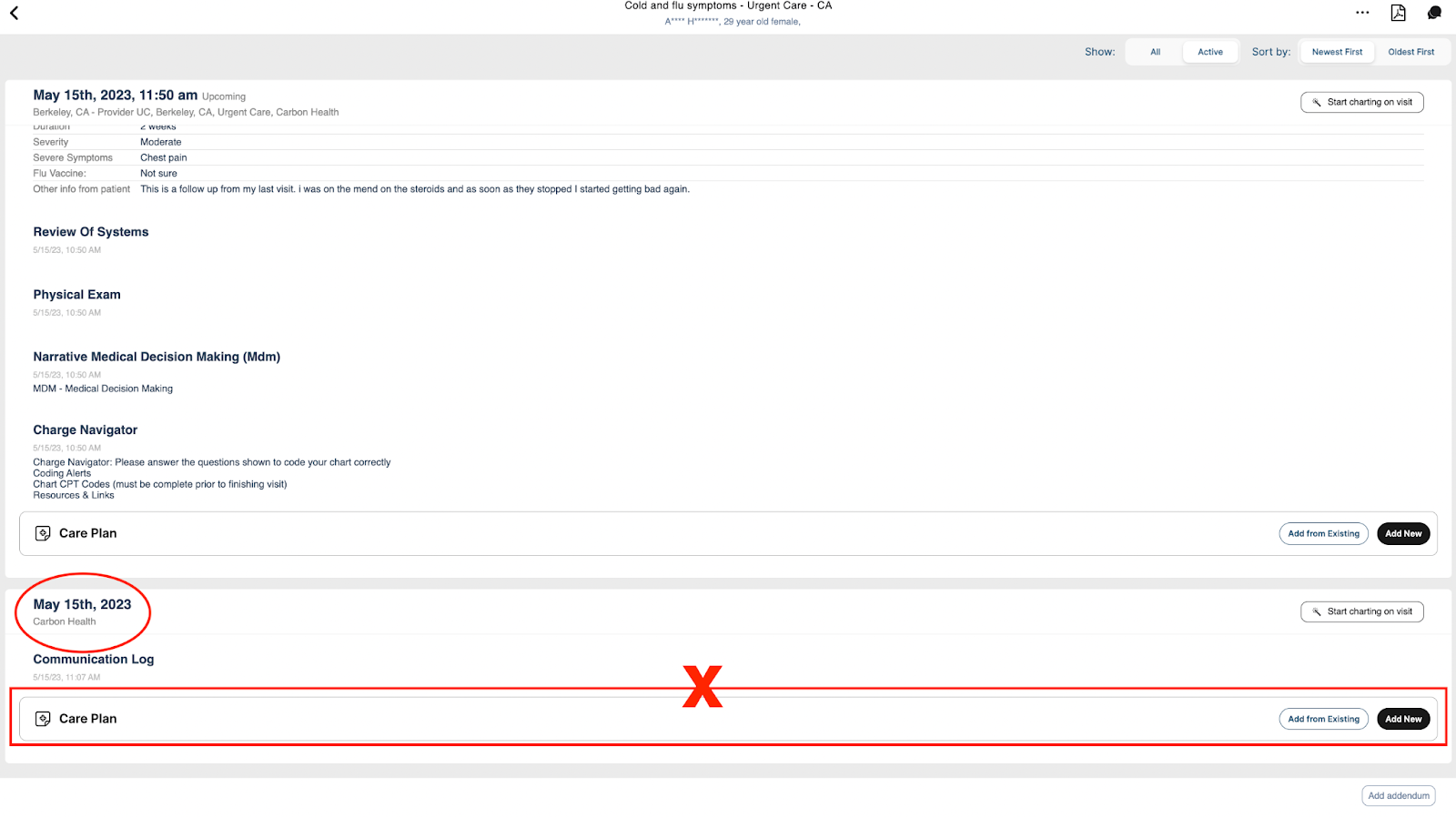
If the message states “Care Plan needs to be added” then make sure that the Care Plan within the chart is attached to the encounter and is not entered via addendum. You can identify an addendum when the only items captured in the circled titling specify the date and clinic as seen in the red circle below.
-
If Care Plan is added via addendum and it is the same day of the visit, then the provider has to select the “Start charting on visit” button on the chart and re-document correctly by using the Care Plan field located on the chart. The below image is what the chart will look like when the charting is done correctly. ****You can see in the large green circle below, **there is an appointment time Slot next to the date, assigned provider, clinic location, and specialty, all listed .**
-
-
If any charting sections need to be moved to the correct visit from the addendum, you will long click and select “Move to different appointment”. Verify the correct appointment date, time, and complaint this information needs to be moved to before moving it. Once moved, verify the information is visible in the correct case.
-
If it is no longer the same day as the appointment, the Care Plan is published with or without orders/ prescriptions linked to it, then submit a ticket for Central Support assistance to have the care plan moved to the chart.
-
If all of the above has been checked and you are still unable to Finish Visit, please provide a video or screen recording while in Demo mode to avoid PHI with the Inspect Tool (opens in a new tab) window showing that there is no reaction when the Save button is pushed.
-
Once you have reviewed the video and no PHI is included and bug behavior is displayed, submit a ticket for please email icook-ehr-support@carbonhealth.com.



Unable to Finish Visit because of X-ray Order
-
Search the MRN
-
Click the appointment case of the visit being reported and click View Details
-
Review the x-ray order in the Care Plan and ensure that the clickable fields like Modality, X-ray Category, X-ray Location, and subsequent fields all have options selected
-
Try the following
- Delete the images uploaded, report uploaded, and the imaging order from within the Care Plan
- Then refresh your Provider Web App, this can be done by pressing the Command + Shift + R keys altogether at the same time
- Then load the x-ray order into the Care Plan again, and upload the imaging and report as normal
-
In the insistence that you are unable to finish the visit because of the x-ray order after step 4, please provide a video or screen recording while in Demo mode to avoid PHI with the Inspect Tool (opens in a new tab) window showing that there is no reaction when the Save button is pushed.
-
Once you have reviewed the video and no PHI is included and bug behavior is displayed, please email icook-ehr-support@carbonhealth.com.
Unable to Schedule Follow-up Appointment
-
Search the MRN
-
Click the appointment card of the visit that has the Follow-up Appointment in the Care Plan
-
Check that the Follow-up appointment has the following requirements:
-
Has an approximate appointment time frame
-
Has a specialty listed
-
Has an appointment reason that is bookable by a patient
- To verify which appointments are bookable by a patient, check that it is listed within the Chief Complaints Google Sheet (opens in a new tab)
-
-
If the Follow-up appointment does not meet the criteria listed above, there will be a failure with trying to schedule the appointment. After you recognize what requirement is missing, go ahead and update the Follow-up appointment details.
-
If the Follow-up appointment does meet the criteria listed above and you are still unable to book an appointment, provide a screen recording while in DEMO mode to avoid PHI of going through the workflow with the Inspect Tool (opens in a new tab) open and escalate for further assistance.
-
Once you have reviewed the recording and there is no PHI and the Inspect Tool window is open, please email icook-ehr-support@carbonhealth.com. Be sure to include the screen recording or video in the email.
Unable to Sign Off on Visit
A modal will appear that alerts the provider as to why they cannot sign off, be sure to ask the reporter what alert pops if one is not provided in the ticket
-
Search the MRN
-
Click the appointment card of the visit being reported and click View Details. Review the date and time of the appointment, and that all fields necessary for sign off have been completed.
-
These fields include:
- Check-in
- Triage
- Orders (if placed)
- Assign Billing Provider
- Assign Supervisor (if you’re unsure that a provider requires one, you can verify if they do or Don't need a supervisor by heading to their staff account and looking under the ‘Provider Profile’ section for ‘Requires Supervisor’)
- Tx (Care Plan)
-
-
Click on Today’s Chart
-
Confirm that the chart’s date and time match that of what you just reviewed on the View Details screen
-
If there is a chart and the Care Plan was added to the case via addendum the rendering provider of the visit will need to add the Care Plan to the chart.
-
Image of Chart vs Addendum
- A Chart will have the date and time of the appointment, the rendering provider listed, and the location of the clinic. An Addendum will only have the date of when it was created in the case
-
-
If there is not a chart and the visit notes were added to the case via addendum, add a comm log to the case and long hold on it so that you get the option to move it to a different appointment. Then, select the case that matches the date and time that the visit occurred. Once the chart surfaces, move over all items that you are able to by repeating the long hold action. The rendering provider of the visit will need to add the Care Plan to the chart. This can be done by clicking “Start charting on visit” and then “Add New” as shown in the recording below. The “Add from existing’ button can be used to carry over an existing Care Plan
-
-
Once the View Details window is showing required fields necessary for sign off have been completed, try to sign off again.
-
If the provider is still unable to sign off, provide a screen recording while in DEMO mode to avoid PHI of going through the workflow with the Inspect Tool (opens in a new tab) open and escalate for further assistance.
-
Once you have reviewed the recording and there is no PHI and the Inspect Tool window is open, please email icook-ehr-support@carbonhealth.com. Be sure to include the screen recording or video in the email.
Misc.
To enter Demo Mode on the Provider App: Click on Settings while in the Provider App, scroll down to your account section, and click the Demo Mode toggle so that it turns green. Green will indicate that Demo Mode is on. This Loom video demonstrating how to enable Demo Mode can also be sent to reporters - linked here (opens in a new tab)
To take a screen recording on a laptop: Hold down the Command + Shift + 5 keys altogether and click the screen you would like recorded. Click here (opens in a new tab) to be directed to Apple’s directions
To take a screen recording on an ipad: Swipe on the screen for the Control Center, and click the record button. Click here (opens in a new tab) to be directed to Apple’s directions
Back to Top (opens in a new tab)
Supervising Chart Calculations and Reviews
Overview:
There is an option within the Provider App (EHR) that allows leadership to choose a calculated amount of charts to be audited by a supervising doctor for each provider. The two calculated options are a “Fixed number (Monthly)” and a “Percentage (daily)”.
If the option, “Fixed number (Monthly)” is selected, clinic leadership will type in the amount of charts per month for that one provider that they would like to be randomly assigned to and reviewed by a supervising doctor. If the option, “Percentage (daily)” is selected, clinic leadership should pick the percentage of charts per day that they would like to be randomly assigned to and reviewed by a supervising doctor.
- In Staff Settings, there is a toggle that says Requires Supervisor
- Toggle this on as TRUE if that staff account needs to have a supervisor to review their charts
- In Staff settings, set a Supervising chart calculation type
- Fixed number (monthly)
- Choosing this option means that a certain number of charts that this staff account was the rendering provider for will be selected for review by the Supervising provider
- Percentage (daily)
- Choosing this option means that a percentage of charts for a single day that this staff account was the rendering provider for will be selected for review by the Supervising provider
- Fixed number (monthly)
- In Staff settings, set a supervising chart calculation value, based on the type above
- In the visit details, there is a row that says Assign Supervisor, staff will need to select a supervisor for every visit
- Based on the supervisor selected for that particular visit and the type and value indicated in that staff settings, a task will be generated
Scenario examples:
Example 1:
- John Smith PA requires a supervisor
- In John’s staff settings, it’s indicated that Fixed number (monthly), 10 charts need to be reviewed
- In August, John is the rendering provider for 1,000 visits
- On September 1st, 10 random charts of the 1,000 he saw will require review
- In 5 of the visits he chooses Dr. A as the supervisor and in 5 of the charts he chooses Dr. B as the supervisor
- Dr. A will receive an automatic task to review said 5 charts
- Dr. B will receive an automatic task to review said 5 charts
Example 2:
- Sally Doe NP requires a supervisor
- In Sally’s staff settings, it’s indicated that Percentage (daily), 50% charts need to be reviewed
- On September 27, Sally is the rendering provider for 30 visits
- On September 28th, 15 random charts of the 30 she saw will require review
- In 15 of the visits she chooses Dr. A as the supervisor and in 15 of the charts she chooses Dr. B as the supervisor
- Dr. A will receive an automatic task to review said 15 charts
- Dr. B will receive an automatic task to review said 15 charts
Scanning Documents
- It is important to note that any document which may need to be emailed, faxed, printed or otherwise extracted from the Provider App in the future should be scanned into the patient’s chart instead of capturing it by photo as photo quality is severely diminished when performing the above actions.
- The Provider App (EHR) does not support TIFF files.
- Prior to scanning, go into the Scanner’s settings and choose how the scanner should save the document. The preferred file type is .PDF, otherwise .PNG is also a sufficient option.
- If you have already scanned the document, export it as a .PDF or .PNG before uploading it to the Provider App.
Provider App Updates
The team at Carbon Health is continually improving the app and pushing updates to the iPads when they are ready.
If while using the Provider App, you see a yellow banner at the top of the screen indicating that it is ready to be updated, please press it as soon as possible to ensure you are using the most up to date version